Requirements

The PHP Login Script has a few requirements which must be met before you are able to install and use it. In this section, these requirements are explained.

Automatic Installation for MySQL users (skip this and go to Manual Installation if you are not using MySQL or if you have problems with the installer).

  1. Download the files from the download page here. Unzip the files and save them to a location somewhere on your computer.
  2. Upload the files to your hosting account keeping the files in their correct folder structure. If you have an existing website, make sure that none of the files will overwrite existing files or folders with the same name.
  3. Browse to the install folder (eg, http://www.yoursite.com/script/install) and put your database credentials in to the form. The script will then automatically edit the existing constants.php file with your database credentials and create the neccessary tables in your existing database.
  4. Browse to the newly uploaded register.php using an internet browser and register with the username 'admin' using a valid e-mail address. Make note of your new password. This will create the default admin account with level 9 access.
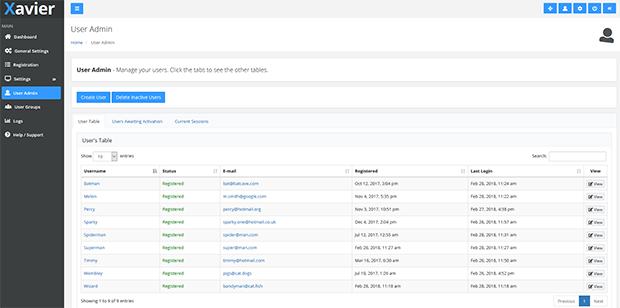
  5. Login from the main.php page with your new details and click on the 'Admin Centre' link. Change the settings on the General Settings tab to match your site.
  6. You should be ready to go!

Manual Installation

  1. Download the files from the download page here. Unzip the files and save them to a location somewhere on your computer.
  2. Edit the 'Database Constants' fields in the constants.php file located in the include folder. The file must be edited to include the details of your hosted database. If you are unsure of these details, your hosting company may be able to provide them for you. Save the updated file.
  3. Upload the files including the edited constants.php file to your hosting account keeping the files in their correct folder structure. If you have an existing website, make sure that none of the files will overwrite existing files or folders with the same name.
  4. Use the downloaded login.sql file to create and populate tables in your new database. If you are unsure on how to do this your hosting company may be able to help. A program such as phpMyAdmin, often supplied as part of a standard hosting package, can be used to run sql commands on databases. Although this sounds complicated, this step is pretty straight forward once you know how. If you are still stuck, check the forums or create a new topic with the problems you are facing.
  5. Browse to the newly uploaded register.php using an internet browser and register with the username 'admin' using a valid e-mail address. Make note of your new password. This will create the default admin account with level 9 access.
  6. Login from the main.php page with your new details and click on the 'Admin Centre' link. Change the settings on the General Settings tab to match your site.
  7. You should be ready to go!

Usage

The script is designed to be used both out of the box and to be edited and configured to suit your existing site. Aside from the administration panel, the Login Script is ultimately meant to facilitiate the registration of user accounts, then to allow logging in, logging out and to protect pages based on login status and user level status among other things. Users and admins can also change user settings and if neccessary extra user fields can be added to the script (with some tweaking, more on this later).

The example pages in the script (register.php, main.php, forgotpass.php, useredit.php and userinfo.php) are not neccessarily needed to allow the script to work. The php code within those pages can be cut and pasted to other or existing pages on your website. For example, the login box can be displayed on a number of pages (or some other text if a user has already logged on). More information below. NOTE: If you change the site or copy and paste the code, all pages must, at the very least, include the session.php page before the first HTML tag. eg, include("include/session.php");

Protecting pages

To protect pages (or parts of pages) from view on whether a user is logged in or out, use the following code either before the info you wish to hide or before the opening html tag to protect a whole page.

if($session->logged_in){

Remember to use the closing tag } at the end of the section you wish to hide. (So for a whole page, place the end tag after the closing HTML tag).

Alternatively you can use the following code to direct users to another page if they are not logged in.

if(!$session->logged_in){ header("Location: ../main.php"); } else {

The exclamation mark in the if statement basically means, 'If you are not logged in go to main.php otherwise stay on this page.' The code following the { tag will be code shown to those logged in. Remember the closing tag } after the info you wish to hide.

Protecting pages based on user level (for example, admin)

The following code can be used to protect pages based on what level user is veiwing the page or whether the admin is viewing the page.

if($session->isUserlevel(5)){ - Check for specific userlevel - change the number to reflect the userlevel.
if($session->overUserlevel(5)){ - Check if user is over specific userlevel.
if($session->isAdmin()){ - this specifically checks to see if you are either logged in as user 'admin' or are at level 9.
if(!$session->isAdmin()){ - Checks to see if you are NOT admin (note the ! mark).
Again don't forget the closing tag!!

Check out the included pages or even the code on the administration pages to get an idead of how this all pulls together.

Logging Off

Use this hyperlink / code to log off user's from your website - <a href="process.php">Logout</a>.

As it sends no arguments to the process.php page, the process.php sees this as a request to log the user off. When the user logs off they are re-directed to the home page set in the administration panel. This can be changed (see below).

Re-directing users

The script is set redirect users to either the home page set in the administration page or the referring page depending on what they are trying to do. This may not suit your website and so it can be changed. The home page is an amalgamation of both the site_root setting and the home_page setting eg, site_root = http://www.mysite.com + home_page = index.php = redirection page = http://www.mysite.com/index.php. To change the redircetion settings you can edit the script anywhere you see this header("Location: ".$session->referrer); or this - header("Location: ".$config['WEB_ROOT'].$config['home_page']);. For example you could edit it with a static entry - header("Location: index.php");

Adding new user (profile / database) fields

It's possible to extend the script to include new registration / profile fields for your users. This could include an address or phone number for example, the choices are limitless.

The first thing you need to do is create the corresponding column in the user's table in your database. For example, in a MySQL database you may wish to create a column called 'telephone' and have it of type varchar(30).

You will then need to make changes to the following files - register.php (or anywhere you have the registration form code), process.php, include/session.php and include/database.php and possibly useredit.php if you wish for your users to be able to change that field in their profile.

In register.php add the field to your login form. For example:
<tr>
<td>Telephone::</td>
<td><input type="text" name="telephone" maxlength="20" value="<?php echo $form->value("telephone"); ?>" /></td>
</tr>


In process.php you will need to add your new field to this line of code under the function procRegister()..

$retval = $session->register($_POST['user'], $_POST['pass'], $_POST['telephone]...........);

It needs to match the name field from the form you submitted (for example, name="telephone" becomes $_POST['telephone'] ). Pay attention to the order in which you fit it in to the code here. By all means, add it to the end but this is important due to what we do with the session.php file in a minute.

NB: If you wish for your users to be able to edit the new details you'll also need to edit the same line of code under the procEditAccount() function. What you do here will be slightly different though, you'll pass the POST variable given by the useredit.php account form which may be something like name="new_telephone" (more later).

In session.php you'll need to scroll down to the register function and edit the very first line. It's important to understand here that the variable you add inline here is not the same variable name as the one in the process.php file. Prefix the name with the word sub like the other variables, for example..

function register($subuser, $subpass, $subtelephone...

This is where the order is important. The register function is taking your $_POST['telephone'] variable as an argument so if it is 3rd in the list in process.php then it needs to be third in the list in session.php.

If you are up to the job, you could add some checking on this field within the register function like some of the other fields. If it was a telephone field you might want to check the format or length. There may well be an existing builtin PHP function that could do the job!

Further down the register function is the bit of code that sends the new (and security / error checked) $sub.. variables to the database.php file.

Edit this line of code.

if($database->addNewUser($subuser, $subpass, $subtelephone

Underneath this line is the code pertaining to admin or e-mail activation and also the mail sent to the newly regsitered user. If you wish to include this new field inside an e-mail (eg, listing to the new user what details they have registered), you may need to make some changes here and in the mailer.php file.

You'll need to edit the editAccount() function further down the session.php file if you want the user to be able to edit this new field (again - more later).

In database.php scroll to the addNewUser function and change this line of code..

function addNewUser($username, $password, $telephone

paying attention again to the order in which the arguments are passwed by the session.php page.

Further down the function, edit this section..

$query = "INSERT INTO ".TBL_USERS." SET username = :username, password = :password, telephone=:telephone,

This new format of query may be unfamilair to some. It is the new PHP PDO way of first sanitizing the code. Order here is not important. Finally also change this last bit of code...

return $stmt->execute(array(':username' => $username, :telephone' => $telephone,

The variable must match the variable name at the top of the addNewUser function.

And that's it apart from working on allowing the user (and the admin) to make changes to the existing profile / field when the user is already regsitered (more to follow, I promise).

The biggest mistake people make when editing this section is typos, using the same variable names and ordering. Go over and over the code. It helps to understand the flow of code. It's like this - regsiter.php sends the form fields to the process.php page which sends them to the session./php page which sends them to the database.php which sends them all the way back with a success code.